Pages

Showing posts with label set up android emulator. Show all posts

Set up the Android Emulator

 An Android emulator is mainly an Android Virtual Device (AVD) that signifies a specific Android device. You can set up AVD to run and test your application build with an Android emulator on any device including PC, mobile, tablet, and TV.   


Having said that, using an Android emulator to build an application is optional. The following are some key points that you must know before using an Android emulator. 

  • Android emulator is optional for app building.

  • Android emulator installation is automatic during the installation of RDA Studio. 

  • Our recommendation to you will be to install an Android emulator in course of product installation. 

  • Android emulator is used as a default target to create an Android app, hence it allows you to easily build and run apps on your development system. 

  • In case you are building your own Android emulator, try and build it for each device you want to run your apps. 


We have talked about this in our blog on how to get Android 13 and set up Android 13 SDK RAD supports the below-given targets. 

  • Android devices with ARM version 7 or higher.

  • Android emulator with version 4.0 or lower.


Note that you can’t use an Android emulator on Virtual Machine (VM). Android emulator might even run on a virtual machine but it will not run on an app. 


You can set up an Android emulator on any device including mobile, tablet or larger devices, or TV. An Android emulator can be set up for building an application with React Native, Angular, Laravel, or any other software development framework. 


Set up Android Emulator for mobile

You can set up an Android Emulator on your mobile by following the steps:

  • First, install Android Studio Chipmunk | 2021.2.1 or higher. 

  • Start Android Studio and click on ‘Tools’ and then click on ‘SDK Manager’.  

  • Select Android Emulator in the ‘SDK Tool’ tab and click on the ‘OK’ option. This will help you install the latest Android emulator and if it doesn’t, the emulator is installed already. 

  • In Android Studio, click on ‘Tools’ and then ‘AVD Manager’ and follow all the instructions to create a new AVD. 

                                       Source: embarcadero.com
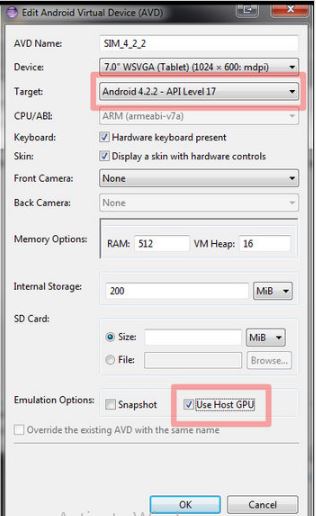
Source: embarcadero.com


Make sure that you already have a supported Pixel device and installed 64-bit new version Android 13 emulator system image. If you lack any of them, first get a supported device and set up Android 13.

  • Now return back to the AVD Manager virtual device list and then double-click on your Android 13 virtual device to launch it.   


Set up Android Emulator for tablet

Set up an AVD device for your tablet or other larger-screen devices, the following steps will help you do so. 

  • Install Android Studio Chipmunk | 2021.2.1 or higher.

  • Go to Android Studio for emulator set up and click on Tool and then SDK Manager. 

  • Select Android Emulator in the ‘SDK Tool’ tab and click on the ‘OK’ option. This will help you install the latest Android emulator and if it doesn’t, the emulator is installed already. 

  • In Android Studio click on ‘Tools’ and then ‘Device Manager’ and then go to ‘Device Manager’ panel and tap on ‘Click device’. 
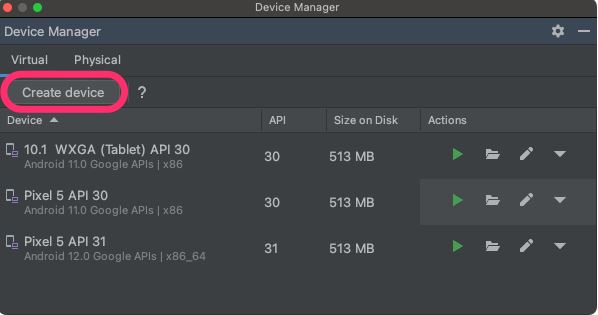


  • Now choose the device definition that has a large screen, for example, ‘Pixel C’ for tablet in the ‘Tablet category.’ After selecting the device definition click ‘Next.’

  • Search for the Android 13 system image Android API 33, and then tap on the ‘Download’ button to get it. Once the download is completed and choose the system image and click on the ‘Next’ button. 

  • Finalize all other settings for your device and then tap on the ‘Next’ button. 

Get Android 13 and set up SDK

Get Android 13

Android 13 is the latest version that has brought a lot of new features and functionalities. Building a compatible app for Android 13 is needed pf an hour. You can get a new version of Android 13 from any of the below-mentioned ways:


  • Get the Android 13 version on a Google Pixel device

  • Get a generic system image (GSI)

  • Set up the Android Emulator 

  • Get the new version of Android 13 Beta for Android TV

Get the Android 13 version on a Google Pixel device

In case you already have a device that supports Google Pixel then check your Android version to update your device to Android 13 on air. 


For a major part, you don’t have to reset your data in order to move to migrate a device or an app to Android 13, however, it is recommended that you have a data backup before downloading and installing a new version of Android on your device. 


Android 13 downloads and OTAs are available for the below given Pixel devices. 

  • Pixel 4a and 4a (5G)

  • Pixel 5 and 5a 

  • Pixel 6 and Pixel 6 Pro

  • Pixel 6a

  • Pixel 7 and 7 Pro


Will Pixel 4 get Android 13? The answer to this question is yes. You can easily get Android 13 on Pixel 4 devices. There is also an alternative to getting Android 13 by using Android Flash Tool.  

Set up the Android Emulator

Setting up the Android Emulator to run the new Android 13 on your device is also a great solution. Plus, configuring the emulator is a quick and convenient process that enables you to emulate different device characteristics and screen sizes. 


Now, the emulator setting depends on the type of testing you are required to do. You must set up many devices from the following devices categories:


Get a generic system image (GSI)

Generic System Image binaries for android are available for developers that work as a mediator to validate purposes on compatible Treble-complaint devices and for application testing as well. These images help you address various compatibility problems and also allows you to discover and raise frameworks and Operation System issues. 


You can go to GSI documentation to understand what kind of devices are required, flashing instructions, and various information to select the correct image type for your Android 13 device. 

Get the new version of Android 13 Beta for Android TV

Now Android 13 Beta requires a different type of setup which is basically set up via system images for the Android Emulator for TV and ADT-3 Developer Kit. 

Set up Android 13 SDK

In order to build with Android 13 APIs and test applications with the new version behavior changes then you are required to set up the Android 13 SDK. Follow the steps given in this article to set up Android 13 SDK. This will enable you to build and run your application on Android 13. 


Get Android Studio

The new version of Android 13 SDK has some major changes that do not support some of the older versions of Android Studio.  To get the best development experience with this new version SDK you can use Android Studio Chipmunk | 2021.2.1 or more. 


Get Android Studio here. 


Install the SDK

You can install Android 13 SDK within Android Studio by following the below-given steps:

  • Click on Tools options then visit SDK Manager. 

  • Visit the SDK Platform tab and choose Android Tiramisu Preview.

  • Click on the SDK Tools tab, and choose Android SDK Build-Tools 33. 

  • Now click on the OK option and install the SDK. 


Update the build configuration of your app

To test your application compatibility and access Android 13 APIs, you need to open module-level build.gradle.kts or build.gradle file, and update all of them with the updates of Android 13. The way you format the values depends on the type of version of the Android Gradle Plugin (AGP) you use. 

AGP 4.2.0 or lower

In case you use AGP 4.2.0 or a lower version, update your build.gradle.kts or build.gradle file of your application with the below-given values on Android 13: 


Groovy

android {

    compileSdkVersion "33"


    defaultConfig {

        targetSdkVersion "33"

    }

}


Kotlin

android {

    compileSdkVersion = "33"


    defaultConfig {

        targetSdkVersion = "33"

    }

}

AGP 7.0.0 or higher

In case you use AGP 7.0.0 or higher version update build.gradle or build.gradle.kts file with the below-given values for Android 13. 


Groovy

android {

    compileSdk 33


    defaultConfig {

        targetSdk 33

    }

}


Kotlin

android {

    compileSdk = 33


    defaultConfig {

        targetSdk = 33

    }

}


Make new Model/Controller/Migration in Laravel

  In this article, we have included steps to create a model and controller or resource controller with the help of command line(CLI). Here w...